Duplicate, delete, and sort repeated blocks
Swipe a repeated block to the left to duplicate or delete it — and change the order in sort mode.
In some documentations you can add certain groups of fields more than once — these groups are called repeated blocks. A repeated block is a section within a documentation that can appear multiple times; every block has the same structure but can hold its own values.
This is useful when you need to record the same kind of information several times — for example for several circuits, fuses, rooms, appliances, or measuring points. An installation-test documentation might have several circuits, and each circuit needs the same fields: label, fuse, measurements, and test result. Instead of rebuilding those fields each time, you just add more blocks.
Swipe a repeated block to the left to duplicate or delete it. To change the order of the blocks, use sort mode.
Duplicate a repeated block
When a new block is very similar to an existing one, you can duplicate the existing block. Sparkify then creates a new block with the same structure directly below it.
Measurements you've already entered aren't carried over — the new block is ready to go, but its measurement fields stay empty.
Swipe the block to the left
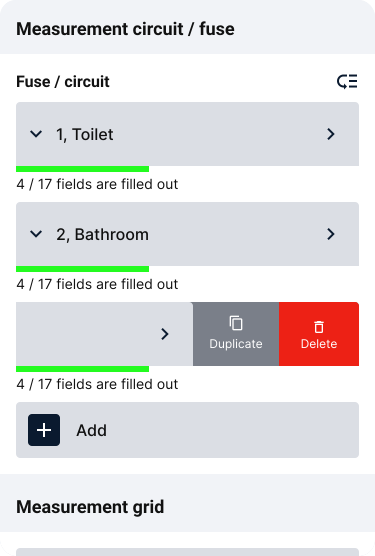
Swipe the repeated block to the left inside the documentation. The Duplicate and Delete actions appear on the right edge.
Tap Duplicate
Tap Duplicate. Sparkify inserts a new block directly below the one you copied; it briefly pulses so you can spot it. A short confirmation then appears; tap View to jump straight to the newly created block.
Delete a repeated block
Swipe the block to the left
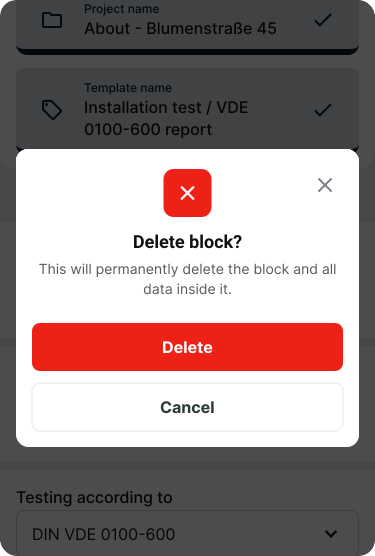
Swipe the repeated block to the left. The Duplicate and Delete actions appear on the right edge.
Tap Delete
Tap Delete.
Confirm the dialog
Confirm the delete dialog to remove the block permanently from the documentation. Deleting removes the block and the data inside it. This action can't be undone.
Sort repeated blocks
You can change the order of repeated blocks — for example when a circuit, room, or measuring point should sit somewhere else in the list.
Open sort mode
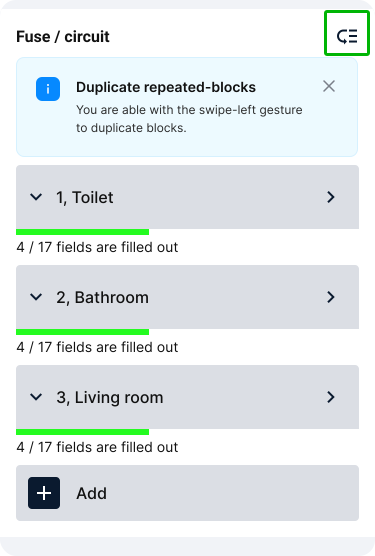
At the top of the block group, tap the sort icon next to the heading — for example next to Fuse / circuit. Sparkify switches into sort mode.
Move the blocks with the arrows
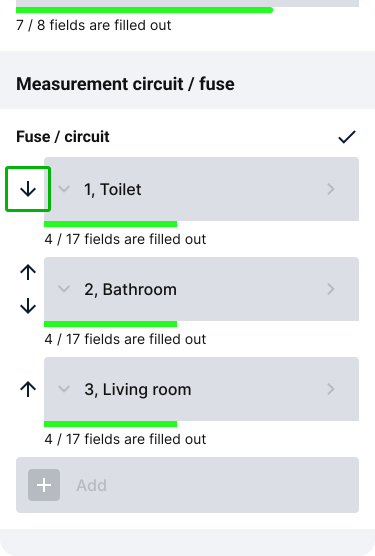
In sort mode, up and down arrows appear to the left of the blocks. Tap the up or down arrow to move a block one step at a time to where you want it. The first block can only move down, the last block only up; blocks in between can move either way.
Confirm the new order
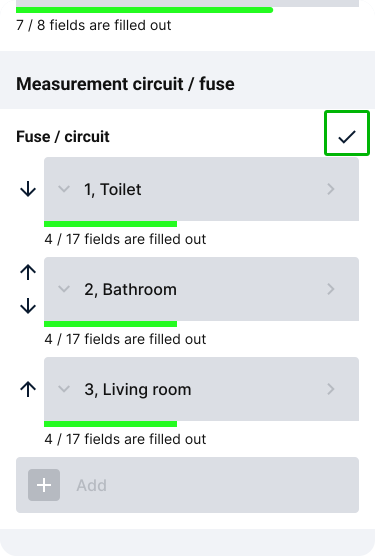
At the top of the block group, tap the check to apply the new order.