Manage and duplicate documentations
Manage and duplicate a documentation straight from the documentation list — swipe it left for the quick actions More and Edit.
In the Sparkify apps, you manage documentations straight from your documentation list. Swipe a documentation to the left to reveal the quick actions More and Edit.
Edit takes you straight to the documentation's details. More opens the full action menu — where you can, for example, create a report, duplicate the documentation, move it, or delete it.
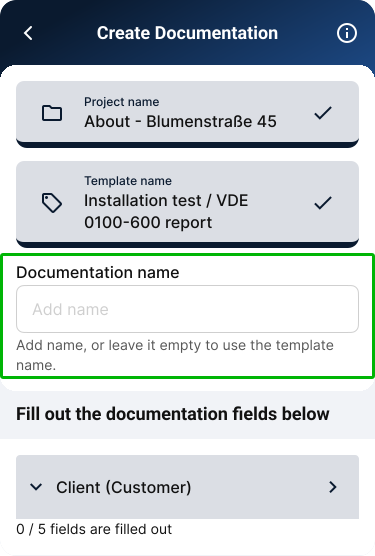
A documentation can be named right when you create it. When you later duplicate a documentation, you can optionally give the copy a name too.
Duplicate a documentation
Swipe the documentation to the left
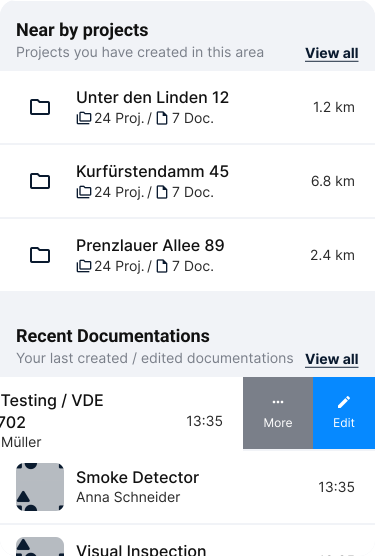
In a project's documentation list, swipe the documentation you want to the left. The quick actions More and Edit appear on the right edge.
Tap More
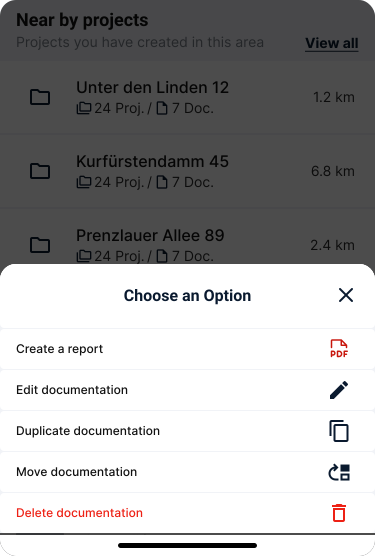
Tap More to open the full action menu for that documentation. You can also reach the same menu from the three-dot menu on the documentation screen.
Choose Duplicate
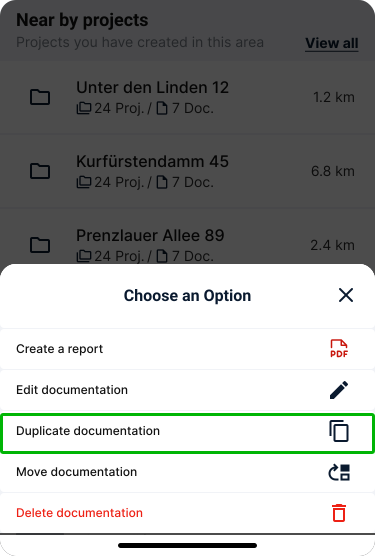
Tap Duplicate documentation in the menu. Duplicating copies the documentation's structure, but not the measurements already recorded. The new documentation has the same fields and blocks, but none of the measurement data from the original.
Name the copy (optional)
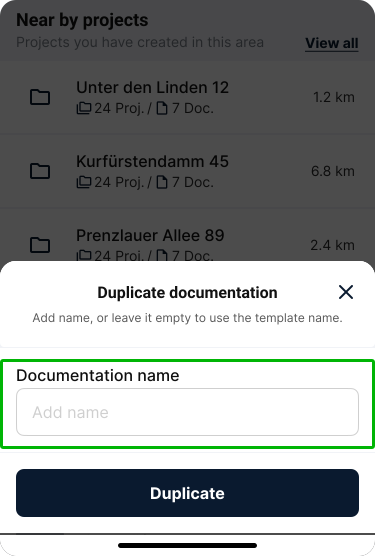
In the Duplicate documentation dialog you can type a name for the copy. If you leave the field empty, Sparkify uses the name of the original template. If the documentation already has a name of its own, the field is pre-filled with it — keep it or change it. Tap Duplicate to create the copy. A brief confirmation then appears; tap View to jump straight to the newly created documentation.
Name a documentation when you create it
You can give a documentation a name right when you create it. This name helps you tell documentations apart within a project — for example across several tests, rooms, appliances, or variants of the same template.
When you later duplicate this documentation, the existing name is pre-filled in the Duplicate documentation dialog and can be kept or adjusted.
Edit a documentation
Swipe the documentation to the left
In your documentation list, swipe a documentation to the left. More and Edit appear on the right edge.
Tap Edit
Tap Edit to open this documentation's details directly. This quick action takes you straight into editing the documentation, without having to open the full action menu first.
Open the action menu
Tap More to open the full action menu for a documentation. You can also reach the same menu from the three-dot menu on the documentation screen.
The menu contains:
- Create a Report — generate a report from the documentation.
- Edit documentation — change the documentation's details.
- Duplicate documentation — copy the documentation's structure. Measurements are not carried over.
- Move documentation — move the documentation to another project.
- Delete documentation — permanently delete the documentation and the measurements inside it. This action can't be undone.