Manage and archive projects
Manage a project straight from the project list — swipe it left for the quick actions More and Archive.
In the Sparkify apps, you manage projects straight from your project list. Swipe a project to the left to reveal its quick actions — More and Archive.
More opens the project's full action menu. Archive moves the project out of your active project list and into the archive, without deleting it.
More options
Swipe the project to the left
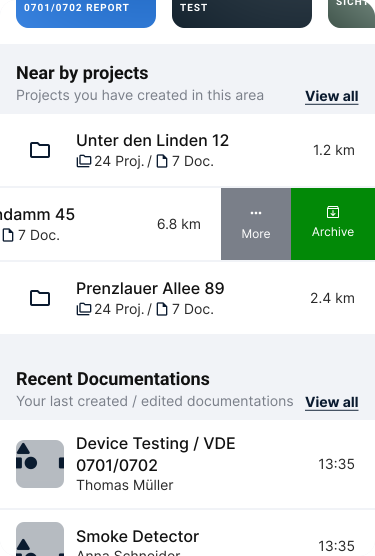
In your project list, drag a project row to the left. The More and Archive quick actions appear on the right edge of the row.
Tap More
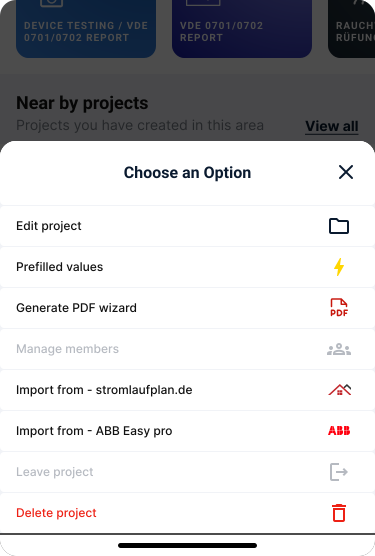
Tap More to open the full menu of actions for that project. You can also reach the same menu from the three-dot more-options menu on the project screen.
Depending on your workspace, plan, and user role, some menu items can appear greyed out — chiefly Manage Members and Leave project. These are only available in multi-user workspaces, for example on a Professional or Enterprise licence; on a single-user Personal Workspace there's no team to manage or leave.
What a user is allowed to do in a company workspace depends on their role — see Roles.
The menu contains:
- Edit project — change the project's details.
- Manage Prefilled values — set the values that new documentations in this project fill in automatically. See Prefilled values.
- Create a Report — generate a report from the project.
- Manage Members — add colleagues to the project and assign them roles. Available in workspaces on a company licence and subject to your user role. See Add users to a workspace.
- Import from Stromlaufplan.de — import project data from Stromlaufplan.de.
- Import from ABB EasyPro Plan — import project data from an ABB EasyPro plan.
- Leave project — remove yourself from the project; it stays in place for the other members.
- Delete project — permanently delete the project. This action can't be undone.
Archive a project
Tap Archive
Swipe a project to the left in your project list and tap Archive. The project moves out of your active project list and into the archive — it isn't deleted.
View your archived projects
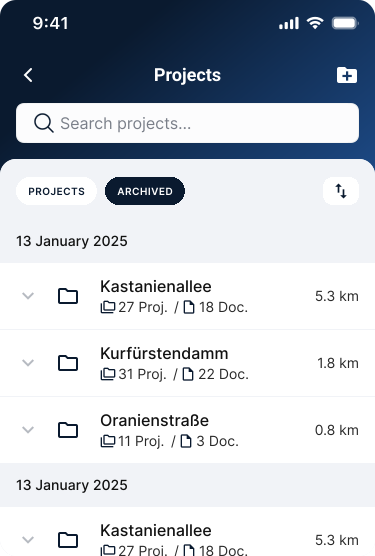
On the main projects screen, an Archived tab sits next to the Projects tab. Tap Archived to view the projects you've archived.