Add users to a workspace
Invite teammates to your Sparkify workspace and assign their role.
Sparkify workspaces let you collaborate with your team on field documentation, reports, and projects. Workspace Owners, Managers, and Users can all add new members.
Before you start
- You must be a member of the workspace (Owner, Manager, or User).
- Have the email addresses of the people you want to add. They must already have a Sparkify account — there is no separate signup flow.
- Decide which role each new user should have (see Roles below).
Open Sparkify
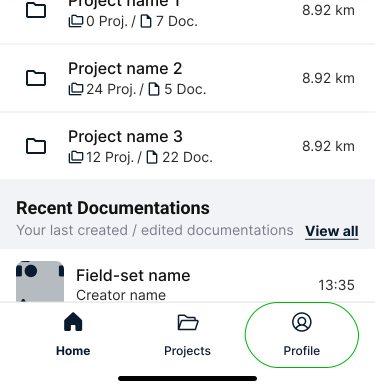
Open the Sparkify app on your phone. From the home screen, tap your profile to access Manage Workspace Members.
Open Manage Workspace Members
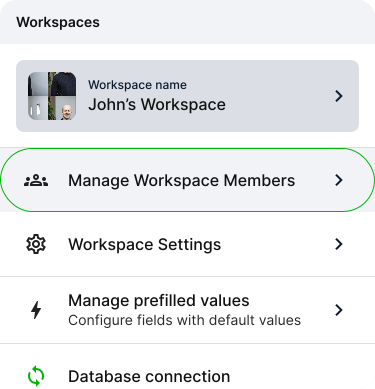
In your profile, tap the Manage Workspace Members tile to see who currently has access to the workspace.
Add someone
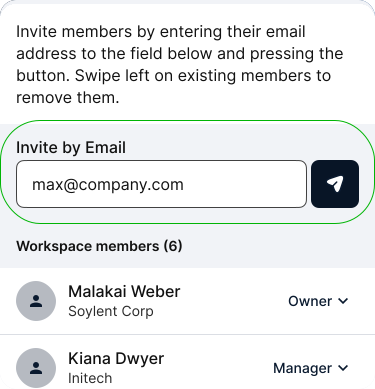
The list shows everyone in your workspace. Tap the Invite by Email field and enter the person's email address.
Choose a role and send
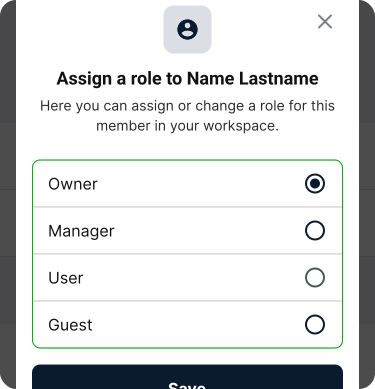
Pick a role for the new user — Owner, Manager, or User (see Roles below) — then tap the send button (paper-plane icon next to the email field). The person must already have a Sparkify account; they're added to your workspace immediately and receive a notification email letting them know.
Roles
| Role | Can do |
|---|---|
| Owner | Full control — manage members, billing, and all projects. |
| Manager | Manage members and all projects. |
| User | Create and edit projects, reports, and documentation. |
Remove a user
- Open Manage Workspace Members from your profile.
- Find the user you want to remove.
- Swipe left and tap Delete (the only action under the swipe), then confirm the deletion in the modal dialog (popup).
Removed users immediately lose access to that workspace and everything in it — projects, documentations, and reports. Their past contributions are preserved.
Troubleshooting
- Can't add a specific person — they need to have a Sparkify account before you can add them. Ask them to sign up for Sparkify, then add them again.
- Hit the user limit on your plan — upgrade your plan or remove an inactive member first.