Understanding your Sparkify subscription, plans, and billing
How Sparkify subscriptions work — Personal vs Workspace, where you pay, trials, and how to manage your plan from the webclient or app.
Sparkify offers two ways to subscribe: a Personal plan tied to your individual account, and a Workspace plan that covers your whole team. This guide walks through how each one works, where you pay, and how to manage your subscription day-to-day. See our pricing page for tier prices and a side-by-side comparison.
Personal vs Workspace — which one you have
Sparkify subscriptions come in two scopes. Which one fits depends on whether you're working solo or with a team.
| Type | Who it's for | Where you buy it | Who's billed |
|---|---|---|---|
| Personal | A solo electrician using only their own account | App Store (iOS) or Google Play (Android) | You, via Apple or Google |
| Workspace | A team sharing projects, reports, and seats | Sparkify webclient at web.sparkify.cloud | The workspace owner, via card, PayPal, or invoice |
Personal tiers: Sparkify (free), Personal Cloud, Personal Cloud+ — see pricing. Workspace tiers: Sparkify (free), Professional Cloud, Enterprise Cloud — see pricing.
A Workspace subscription appears under the Company licenses tab on the Licence and Subscription page in the webclient, visible to the workspace owner. A Personal subscription is listed under the Personal license tab on the same page — but that view is read-only. To manage your Personal subscription, use the Sparkify app, where billing runs through Apple (iOS) or Google (Android).
Pay, manage, cancel subscription
Where you bought it determines how you pay, where you manage it, and cancel the subscription.
| Where you subscribed | Who manages payment | Where to manage / cancel |
|---|---|---|
| iOS app | Apple (App Store) | iPhone Settings → your name → Subscriptions |
| Android app | Google (Play Store) | Play Store app → Profile → Payments & subscriptions |
| Sparkify webclient | Mollie (our payment provider) | Sparkify webclient → Licence and Subscription |
| Custom invoice | Our team (issued directly by Onstruc UG) | Contact us — billed by manual invoice |
If you bought on iOS or Android, all changes — cancellation, payment method, refunds — happen in the App Store or Play Store, not in Sparkify. Sparkify only shows whether the App Store / Play Store subscription is active; it can't edit it.
For Workspace plans bought through the webclient, see Cancelling a subscription below for the full step-by-step walkthrough.
Starting a free 14-day trial
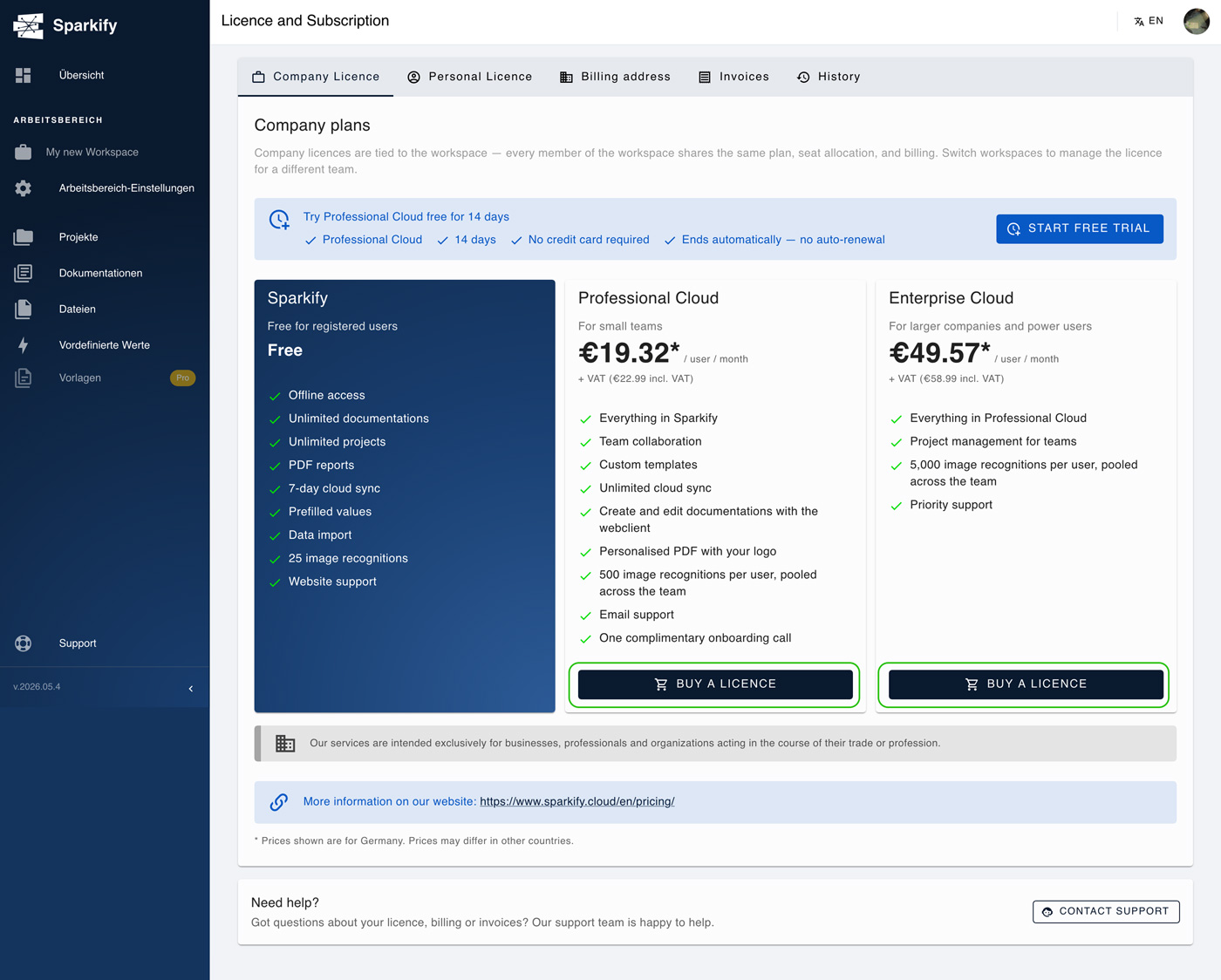
You can try Professional Cloud free for 14 days by clicking the Start free trial button on the banner above the offered plans on the Licence and Subscription page in the webclient. The Start free trial button is disabled if your workspace already has — or has had — a subscription.
For Personal plans: the trial is activated inside the iOS or Android app.
When the trial ends, the workspace falls back to the free Sparkify tier unless you upgrade. No charge happens automatically at trial end.
Buying a Workspace plan in the webclient
Only the workspace owner can purchase. Managers and Users won't see the buy buttons at all. See Add users to a workspace for how roles work and how to make someone an owner.
Open Licence and Subscription, then pick a tier
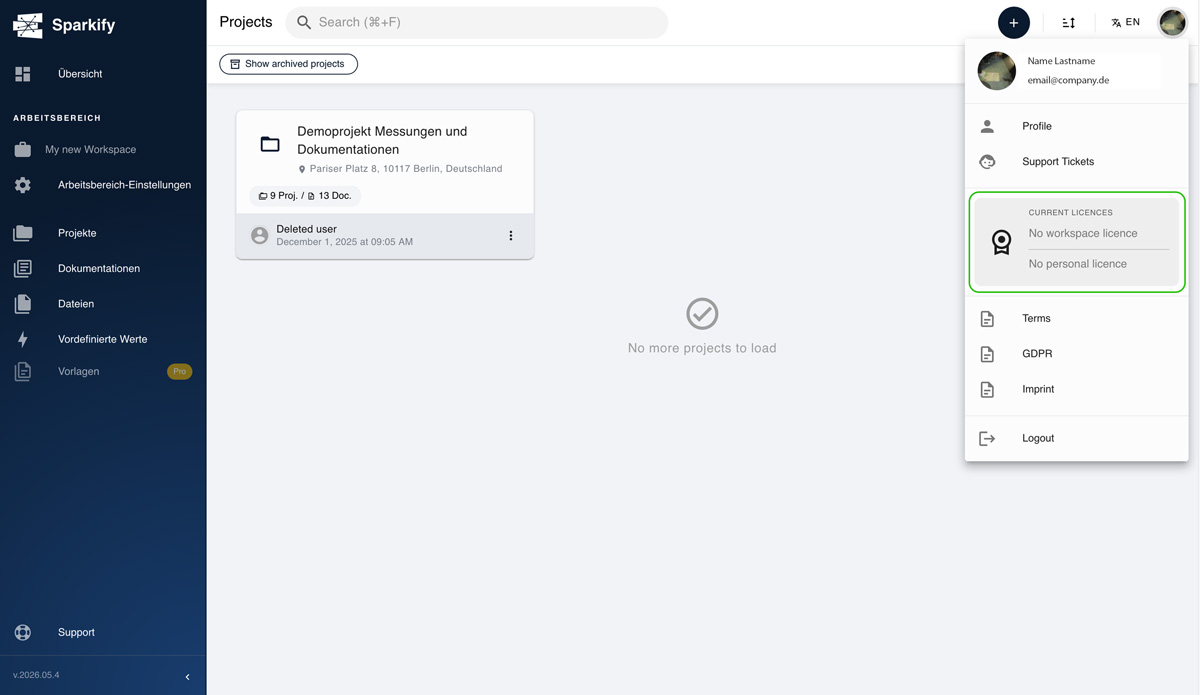
In the webclient, open Licence and Subscription from your profile menu. On the General tab, click Purchase now on the tier you want — Professional Cloud or Enterprise Cloud.
Review your order and billing details
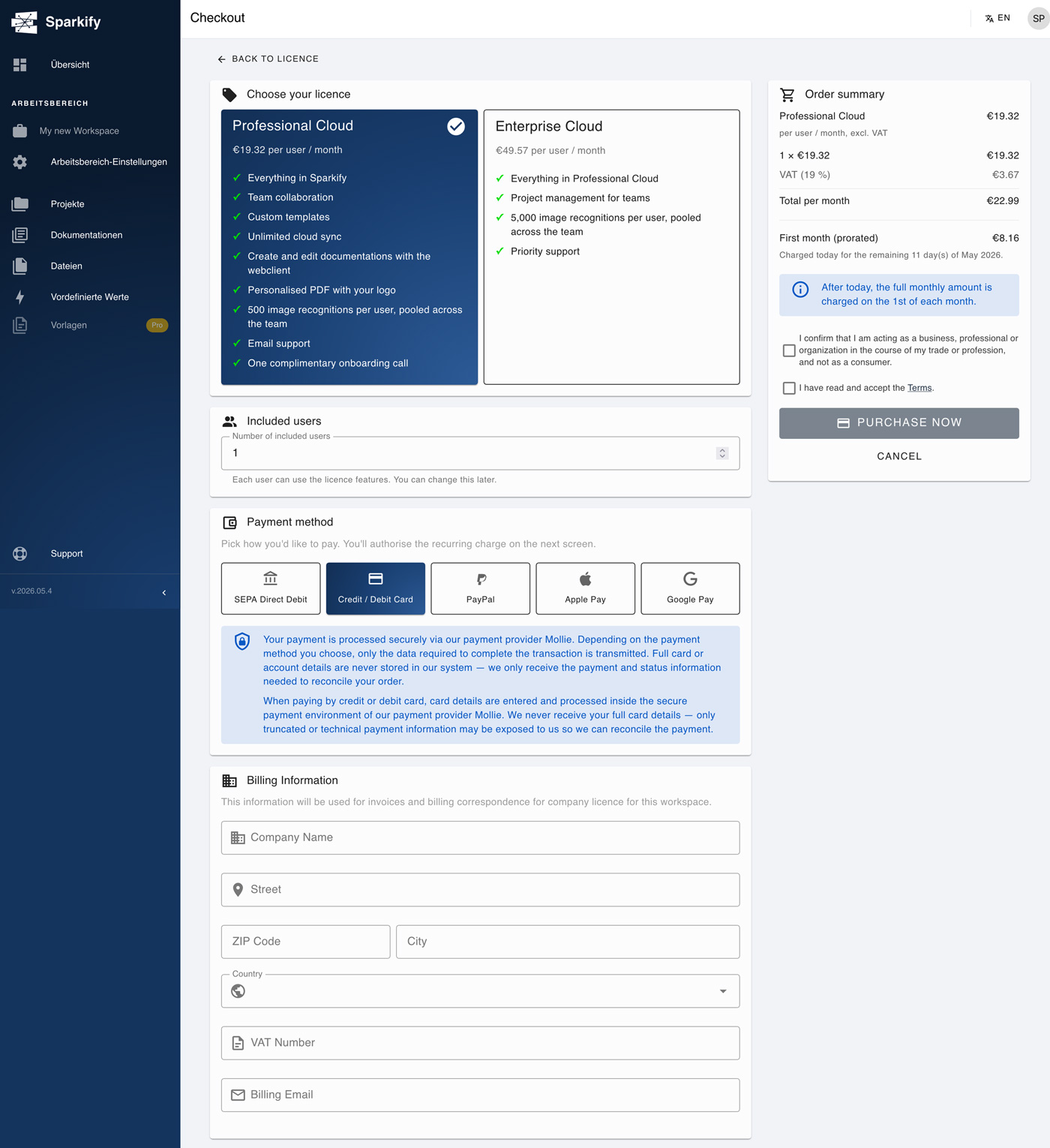
The right column summarises your order — seats × monthly net + VAT = monthly gross. If today is before the end of the month, you'll also see a First month line with the prorated amount you'll be charged today.
Beneath the plans, you'll see a section to choose how many Included users you want in your new Workspace, and beneath that, you can pick your preferred payment method.
Below the summary, fill in your billing address. Street, ZIP, city, country, VAT ID, Company and email are required. VAT is always 19% (the German rate); we don't calculate VAT for other countries.
Pay through our payment provider
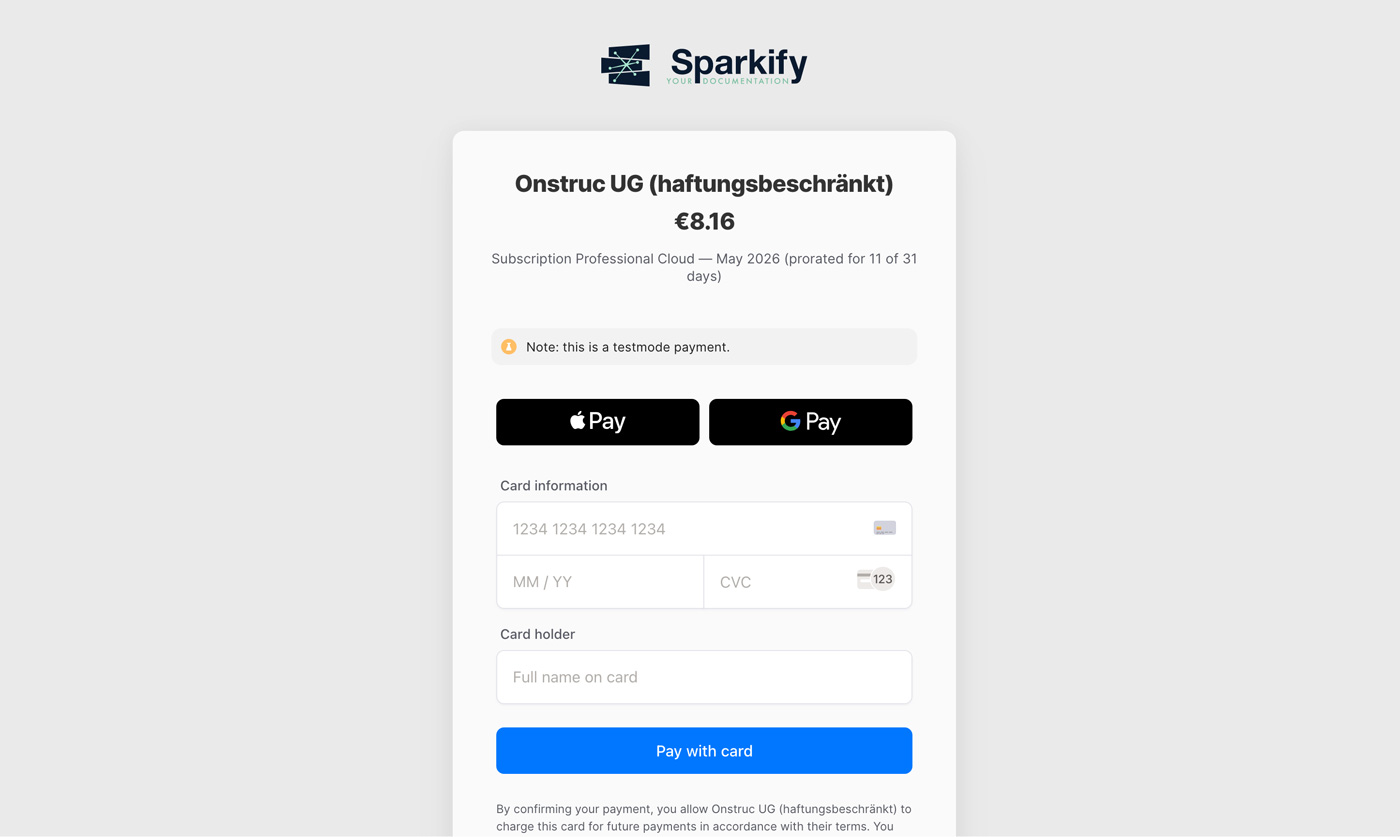
Click Purchase now to be redirected to Mollie's secure checkout. Pick your method — card, PayPal, and other supported methods — and complete the payment.
Confirm and start using
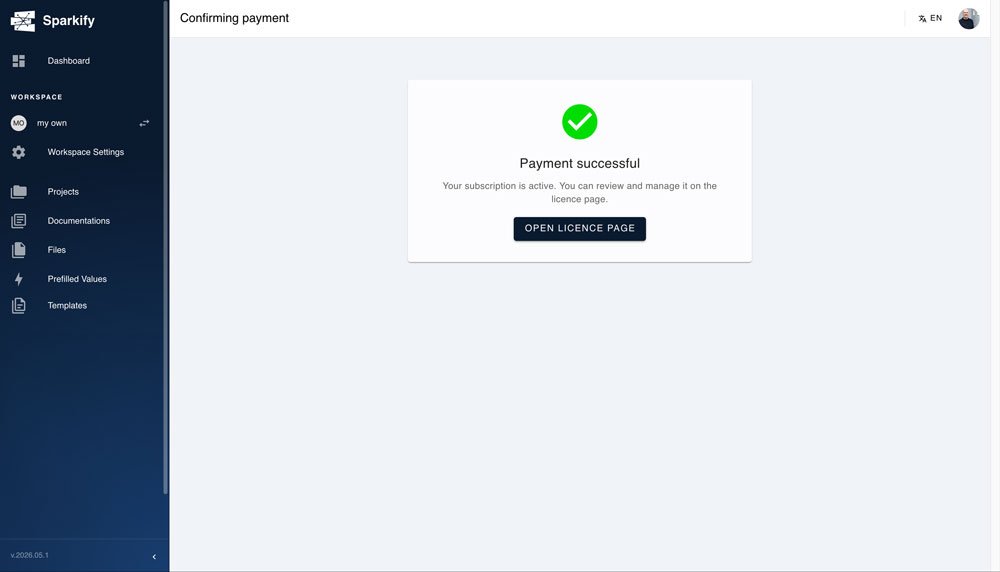
You'll be redirected back to Sparkify, which confirms the payment within a few seconds. The Licence and Subscription page now shows your new tier as the Current plan, with your Started date, included teammembers, monthly total, and AI calls available this month.
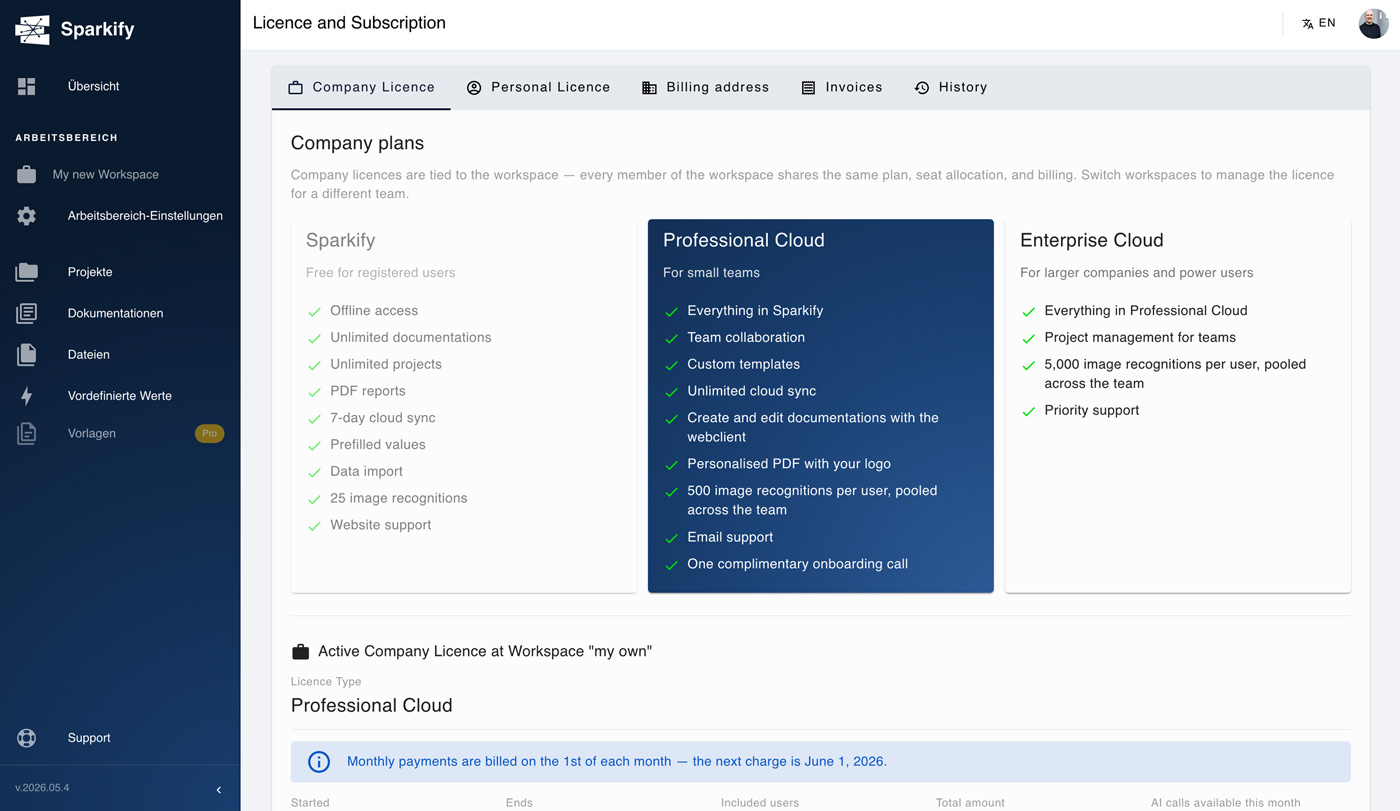
After your first payment, Sparkify charges your method automatically every month. The first month is prorated — you only pay for the days remaining in the current calendar month. After that, your subscription renews monthly until cancelled.
Cancelling a subscription
When you cancel, your subscription stays active until the end of your current billing period. After that date, your workspace drops to the free Sparkify tier and the recurring monthly charge stops.
Click Cancel subscription
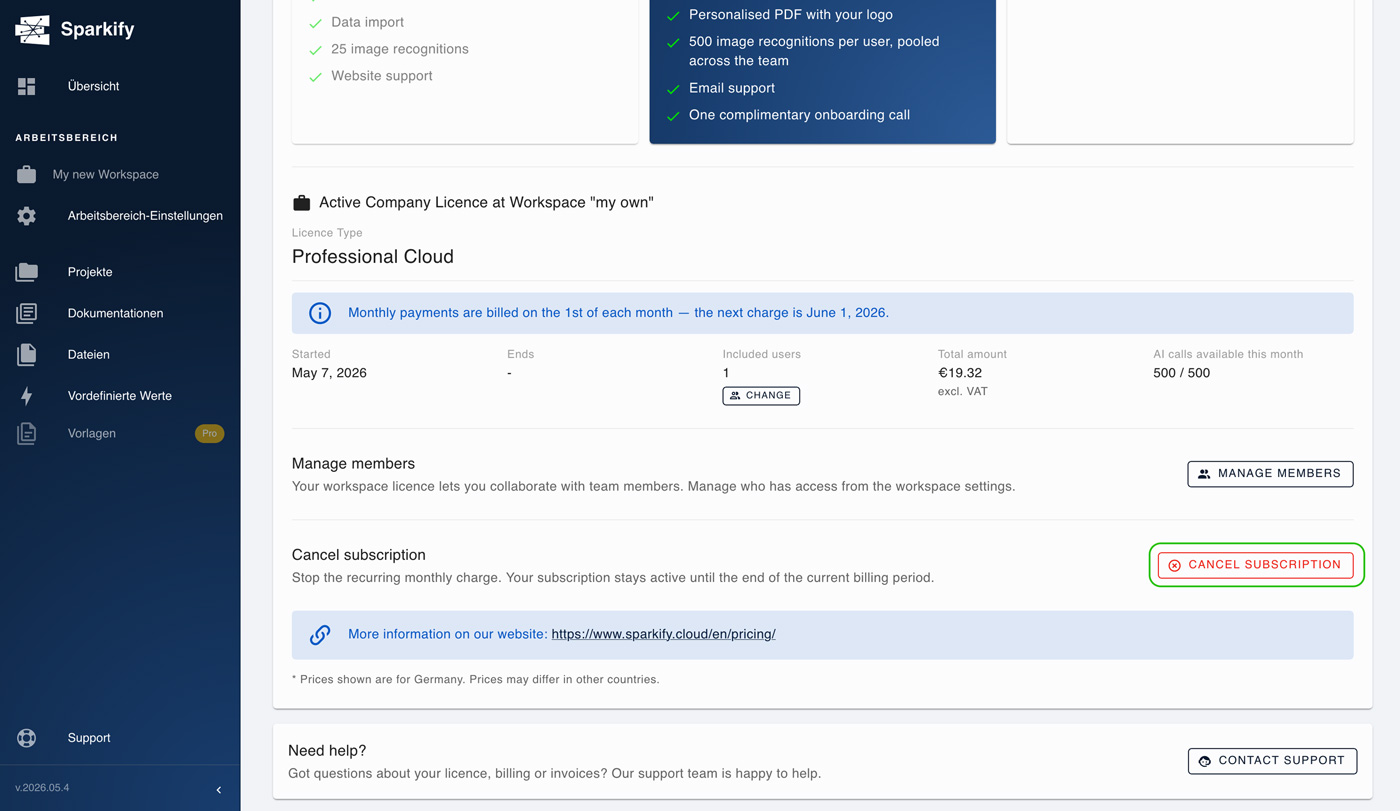
On the Licence and Subscription page, scroll to the Cancel subscription row and click Cancel subscription.
Confirm cancellation
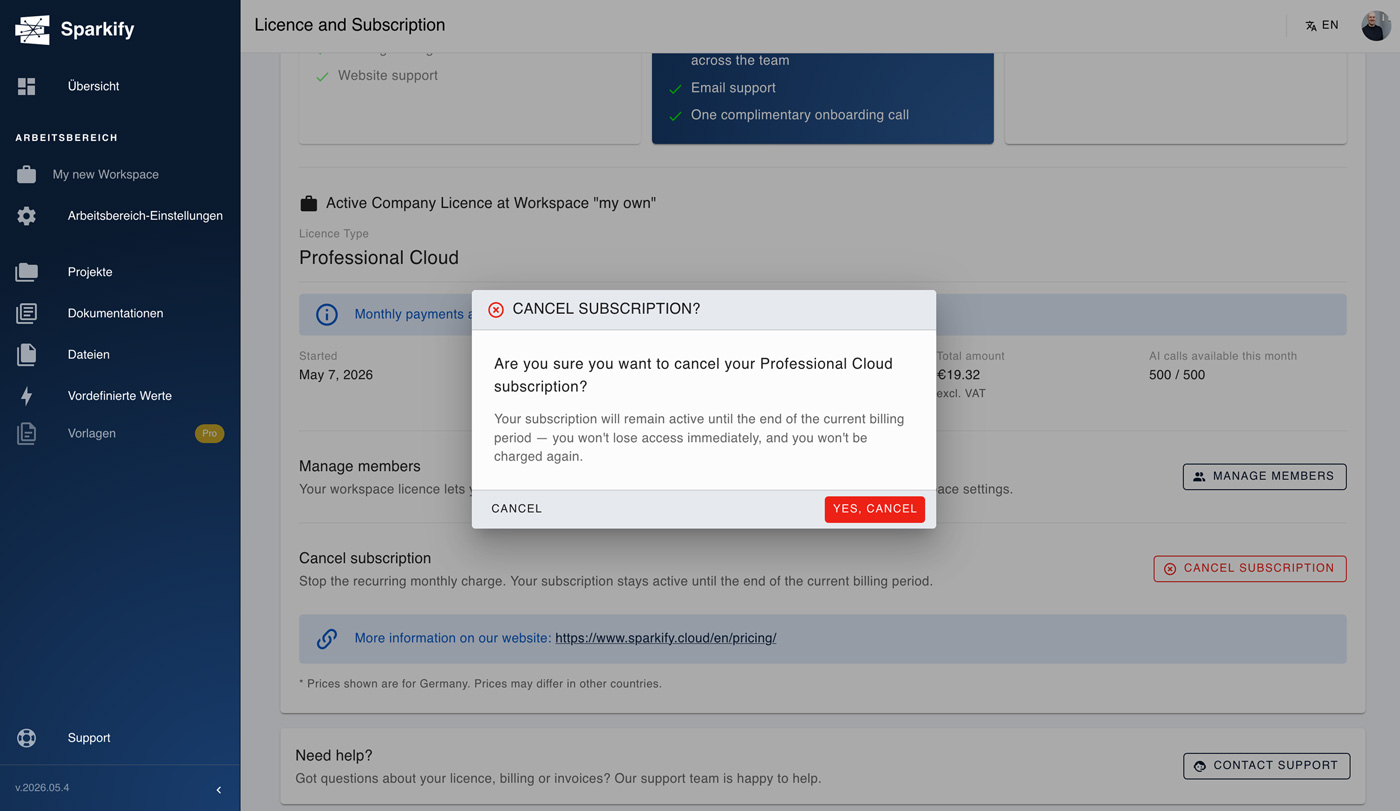
A confirmation dialog explains that your subscription stays active until the end of your current billing period. Click Confirm. The card now shows the cancellation and the end-date.
No more charges run after you cancel. If you change your mind, reach out to us at support@sparkify.cloud and we'll help you reactivate.
Editing your billing address
Your billing address appears on every future invoice and is sent to the payment provider when you set up a card or SEPA mandate.
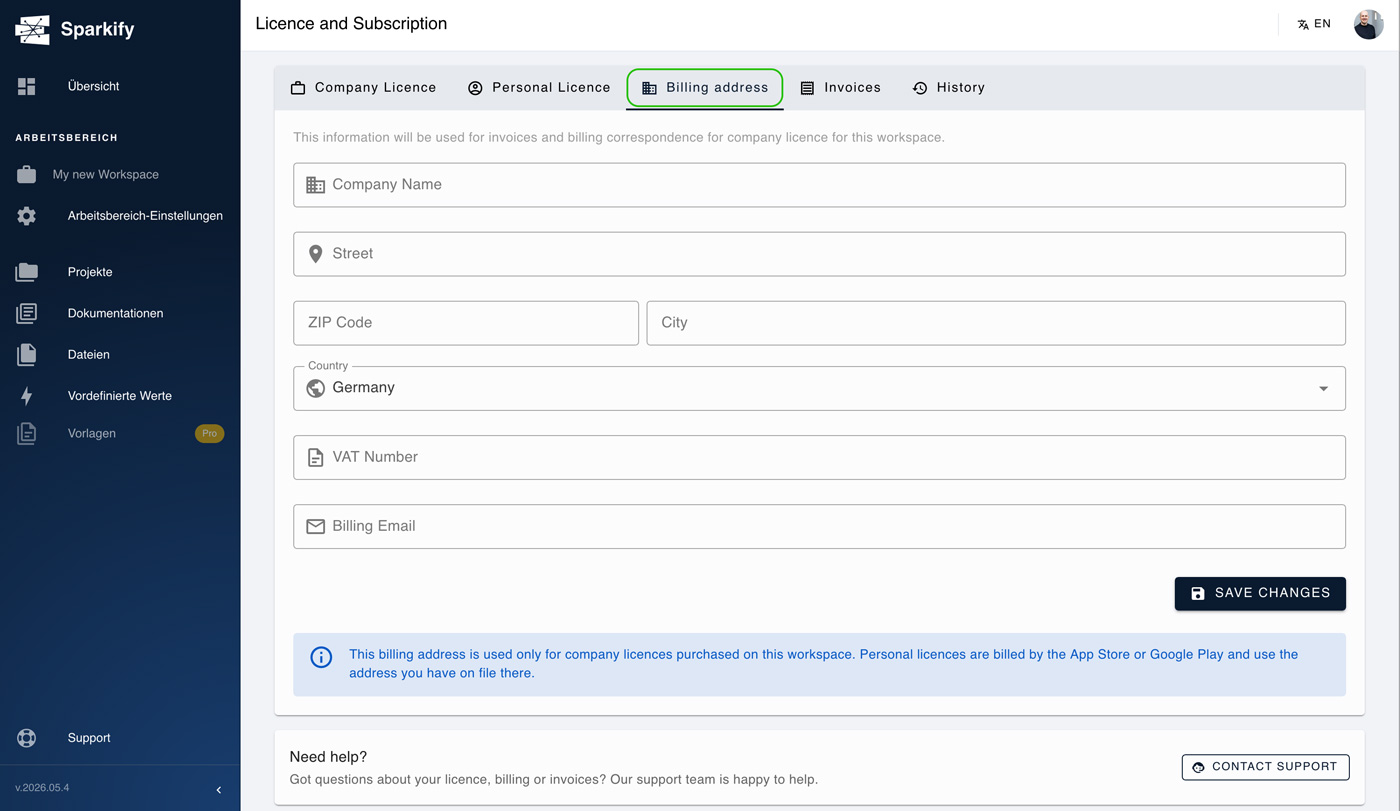
To update it, open Licence and Subscription → Billing address, edit the fields, and click Save. Required fields: street, ZIP, city, country, VAT ID, Company, email.
The edited billing address will be used for the next invoice. Existing invoices cannot be edited.
Finding your invoices
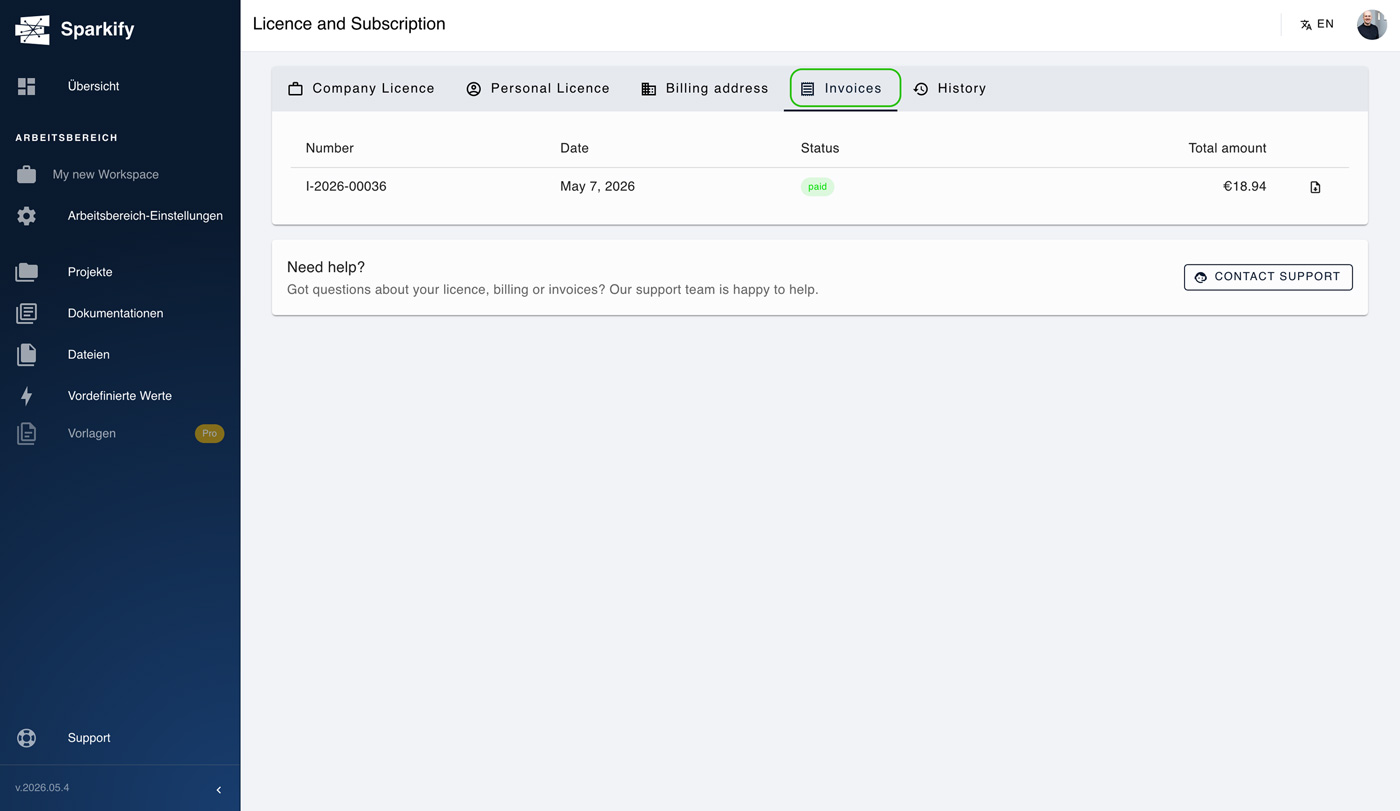
Open Licence and Subscription → Invoices to see every monthly charge with date, number, gross amount, and status. Click any row to download the PDF.
If you bought on iOS or Android, the Invoices tab shows a notice instead — invoices for App Store / Play Store purchases live in your Apple or Google account, not in Sparkify.
Subscription history
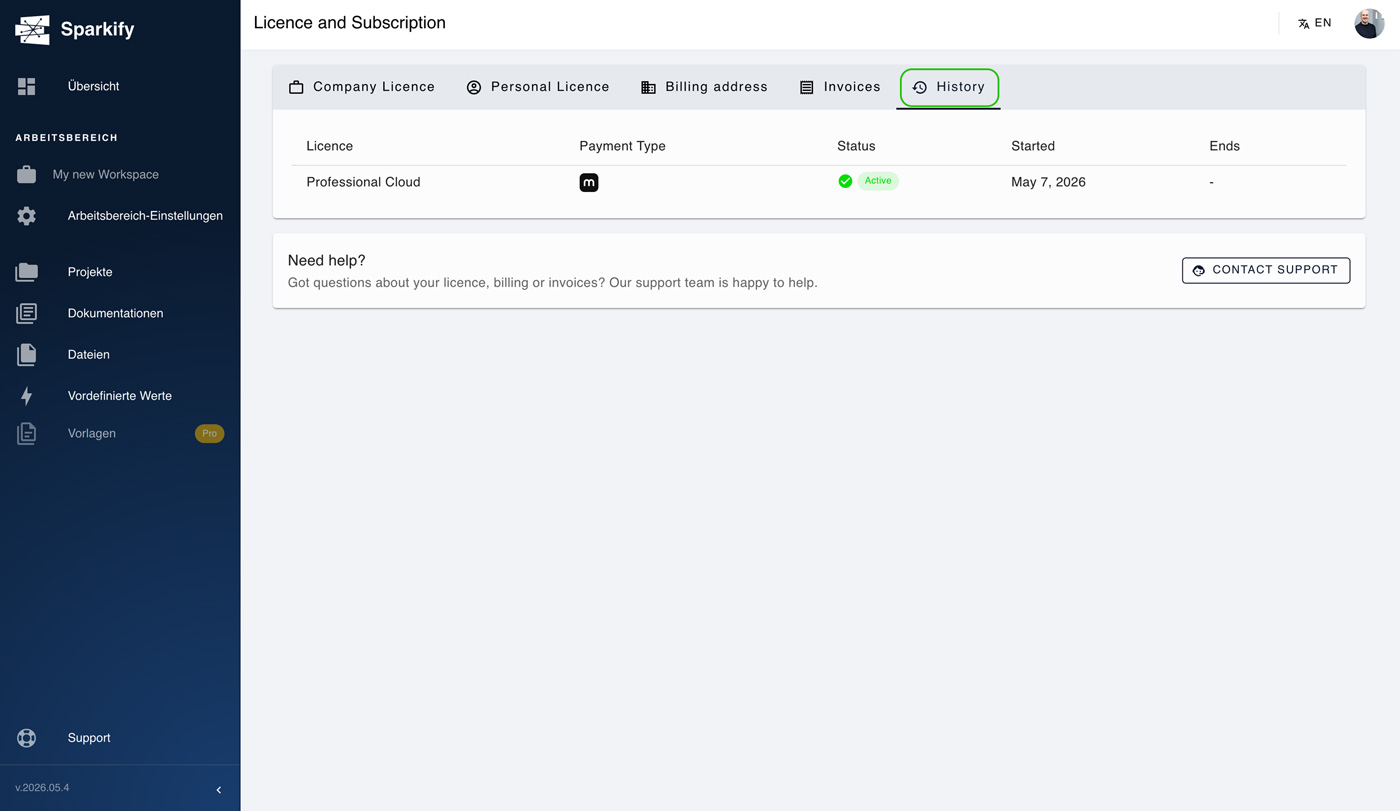
Open Licence and Subscription → History to see every subscription that has ever been attached to your workspace and your account, including ended and cancelled ones. Useful for accounting reconciliation and seeing when seats or tiers changed.
Managing an Apple or Google personal subscription
If you bought your Personal plan on iOS or Android, your subscription is fully managed by Apple or Google. In Sparkify, you'll see it on your Profile page and on the Licencing page. After a change in the store, the change syncs into Sparkify automatically once Apple or Google notify us.
Cancel or change your payment method
- iPhone / iPad: Settings → [your name] → Subscriptions → Sparkify
- Android (Play Store app): Profile → Payments & subscriptions → Subscriptions → Sparkify
Finding your Apple or Google invoice
For Personal subscriptions purchased on iOS or Android, your invoice / receipt isn't stored in Sparkify — it lives in your Apple ID or Google account. Here's how to retrieve it.
On iPhone or iPad (Apple App Store)
- Open the Settings app.
- Tap your name / Apple ID at the top.
- Tap Media & Purchases, then select View Account.
- Scroll down and tap Purchase History.
- Find the Sparkify purchase, tap the price, then tap Resend to receive the invoice by email — or tap the order ID to see its details.
On Android (Google Play Store)
- Open the Google Play Store app.
- Tap your profile picture in the top right.
- Tap Payments & subscriptions.
- Tap Budget & history (or Other purchase activity in some Play Store versions).
- Find the Sparkify subscription / purchase to view the receipt. The receipt is also delivered to the email address tied to your Google account.
Troubleshooting
- "Purchase now" buttons don't appear — only workspace owners can buy. If you're not an owner, ask a workspace owner to either upgrade your role or run the purchase themselves.
- Charged a different amount on day 1 — the first charge after purchase is prorated to the days remaining in the current month. Full-month charges follow once your billing period rolls over.
- VAT looks wrong — check that Country and VAT ID are filled in correctly on your billing address.
- Invoices tab is empty — if you bought on iOS or Android, invoices are only available in your Apple or Google account, not in Sparkify.